
What nameservers decide
Nameservers decide who answers DNS for your domain, and so where your DNS records live. A domain uses one of two setups:
| Setup | Where you manage DNS records | Choose it when |
|---|---|---|
| NG Domain-managed DNS | The domain's DNS Records tab in your NG Domain dashboard | You want everything in one place, or you want DNSSEC from NG Domain |
| Custom nameservers | Your DNS provider's dashboard, such as Cloudflare or your web host's control panel | Your host asks you to use their nameservers, or you already manage DNS somewhere else |
Only one setup is in effect at a time. Records you add on the DNS Records tab do nothing while custom nameservers are in use, and the reverse is also true.
Check which setup you're on
- Sign in to your NG Domain dashboard and open My Domains.
- Click the domain, then open the Nameservers tab.
If it says DNS is managed by NG Domain, manage your records on the DNS Records tab.
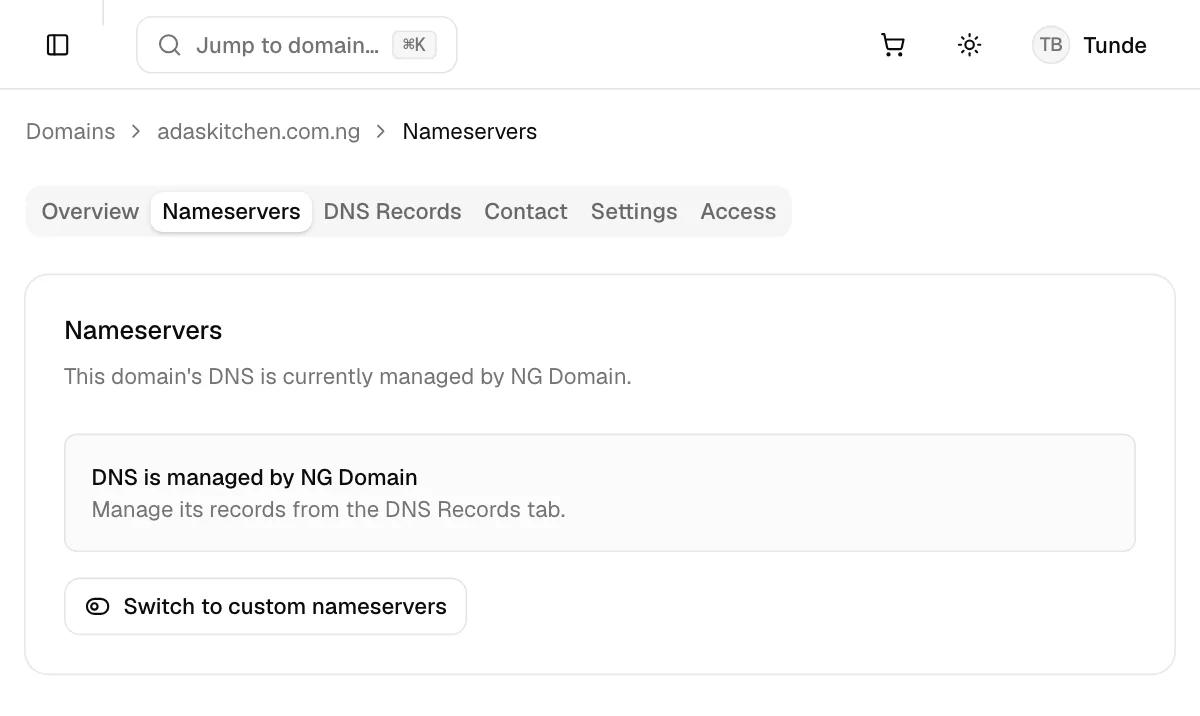
Otherwise you'll see the domain's current nameservers in a form. The Overview tab also lists the current nameservers.
Use custom nameservers
Get the nameservers from your provider first. Cloudflare shows them when you add your domain, and web hosts list them in their setup instructions. They look like dina.ns.cloudflare.com or ns1.yourhost.com.
- On the Nameservers tab, click Switch to custom nameservers if you see it. This takes effect straight away: your DNS records are no longer editable here.
- Type the nameservers into Nameserver 1, Nameserver 2 and, if your provider gave you a third, Nameserver 3. Enter at least two. Type only the hostname, with no
http://and no trailing dot. - Click Update nameservers.
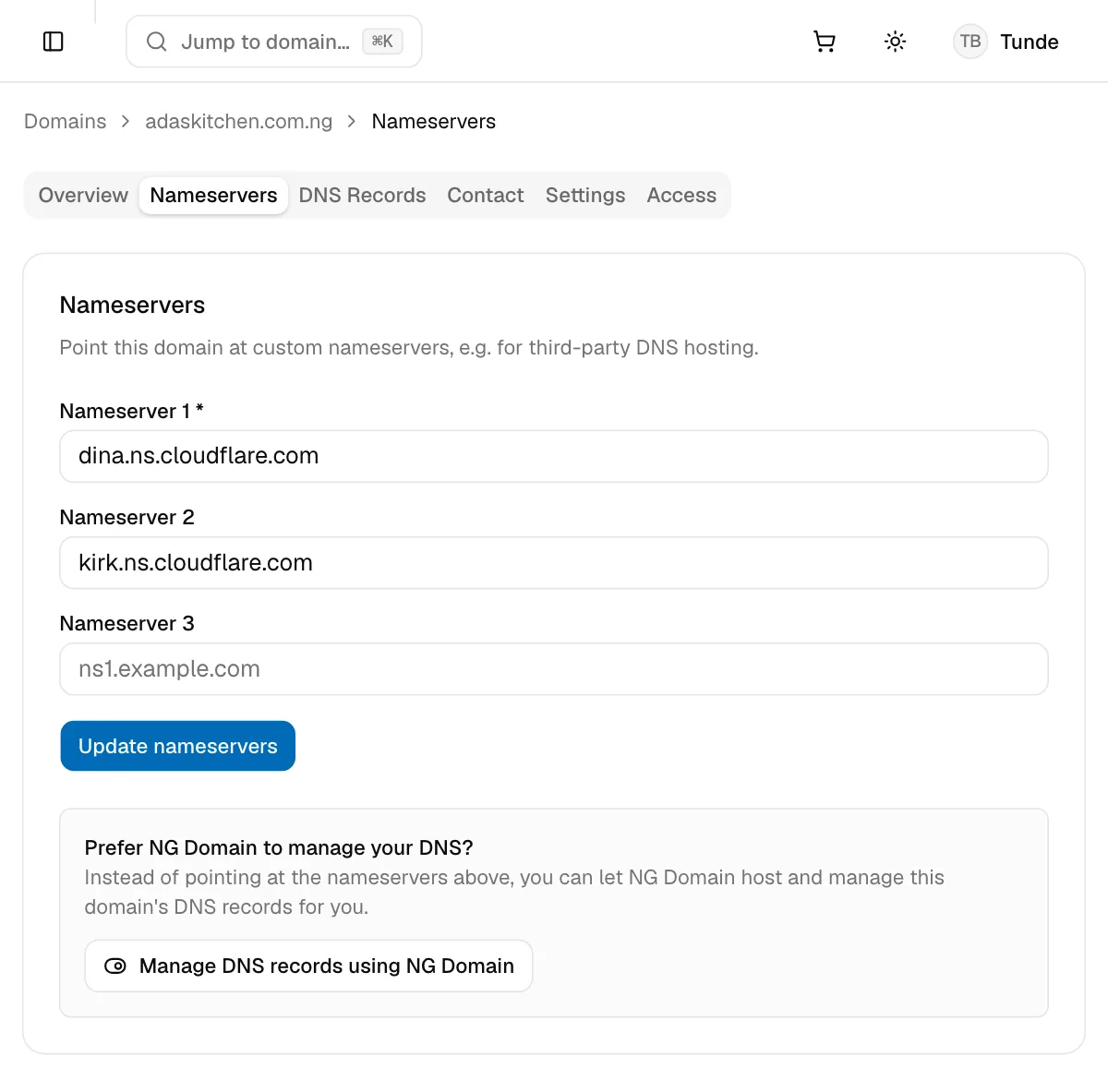
You'll see Nameservers updated. Propagation may take up to 48 hours. Most networks pick up the change within a few hours.
Before you switch, recreate your records at the new provider: the A and CNAME records for your website, and the MX and TXT records for your email. Otherwise your site or email stops working once the new nameservers take over. Cloudflare copies your existing records when you add the domain. Our Cloudflare walkthrough goes through it step by step.
To move to a different provider later, replace the nameservers in the same form and click Update nameservers again.
Switch back to NG Domain DNS
- On the Nameservers tab, under Prefer NG Domain to manage your DNS?, click Manage DNS records using NG Domain.
- Read the warning. Switching replaces the domain's nameservers with NG Domain's, so a website or email running on your current provider's records goes down until you add the same records here.
- Copy your records from your current provider, then click I've saved a copy, continue.
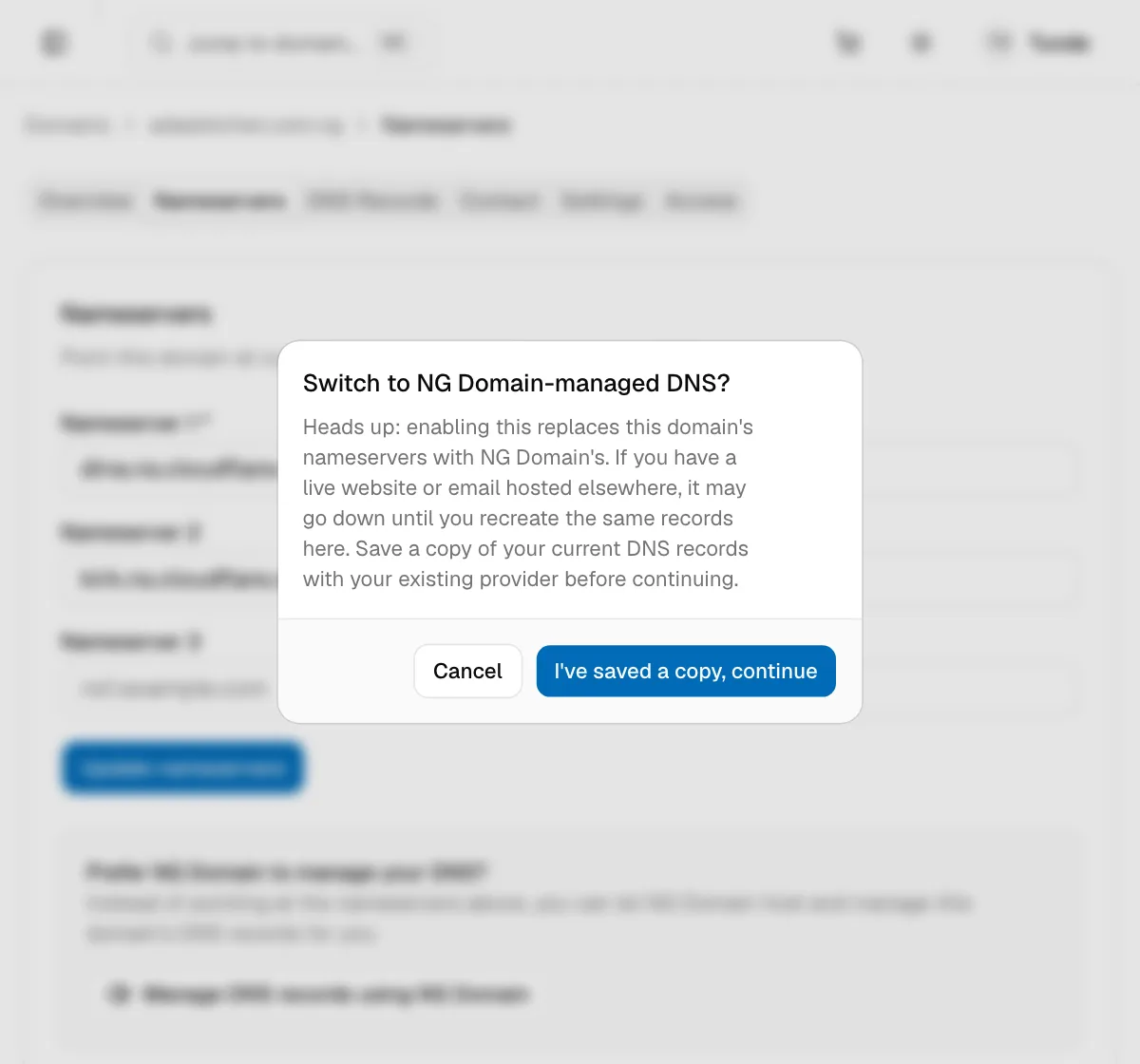
You'll see DNS is now managed by NG Domain. Then open the DNS Records tab and add your records. See Managing DNS Records.
Good to know
- Set up the provider first. Add the domain at your new provider before you enter its nameservers here, so there's no gap where nothing answers for your domain.
- Your developer can do this. If you've given someone developer access, they can change nameservers from their own account. Agree on it first, because it changes where every record lives.
- Changes are logged. Each nameserver update appears in your Activity Log.
If your site is still down 48 hours after a change, contact support with the domain name and the nameservers you entered.