
Why not just share your login?
Your website, email and online payments all depend on your domain, so at some point your web developer or IT person will need to change its settings. The quick fix is to hand them your login, but that means handing them much more than the domain:
- Your inbox. NG Domain signs you in with a one-time token sent to your email. Anyone who signs in as you needs that token, so they either need your email or need you on the phone every time.
- Everything else on the account. Your login opens every domain you own, your billing history, your contact details and the domain’s auth code, which is what moves a domain to another registrar.
- No clean way out. When the project ends, the only way to lock them out is to change how you sign in.
Developer access solves this. You keep ownership and full control, and your developer signs in to their own NG Domain account to manage the parts of your domain they need for the job.
What a developer can and cannot do
| Owner (you) | Developer | |
|---|---|---|
| Add, edit and delete DNS records | Yes | Yes |
| Change nameservers | Yes | Yes |
| Change contact details (WHOIS) | Yes | No |
| WHOIS privacy and auto-renew | Yes | No |
| Get the auth code to transfer the domain | Yes | No |
| Grant or revoke developer access | Yes | No |
Each domain can have one developer at a time. Developer access never transfers ownership. You can take it back whenever you like.
Before you start
- Ask your developer to create a free NG Domain account if they don’t have one already.
- Ask them for the email address they sign in with. It must match their NG Domain account exactly.
For owners: grant developer access
- Sign in to your NG Domain dashboard and open My Domains.
- Click the domain you want to share, then open the Access tab.
- Enter your developer’s email address and click Grant access.
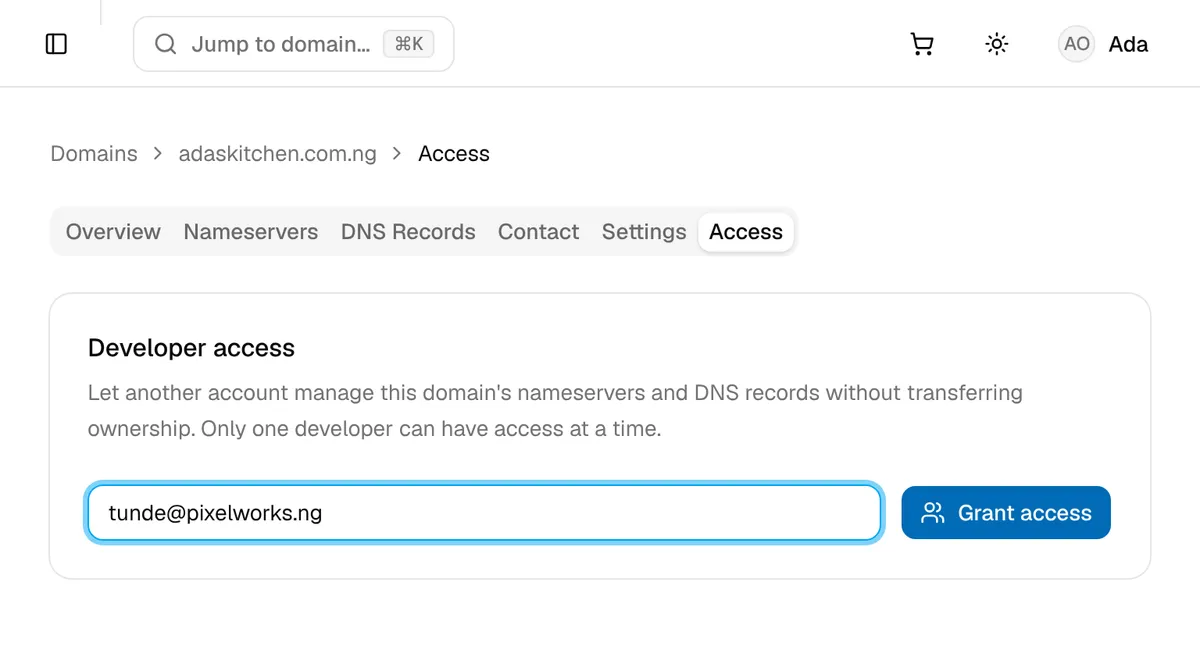
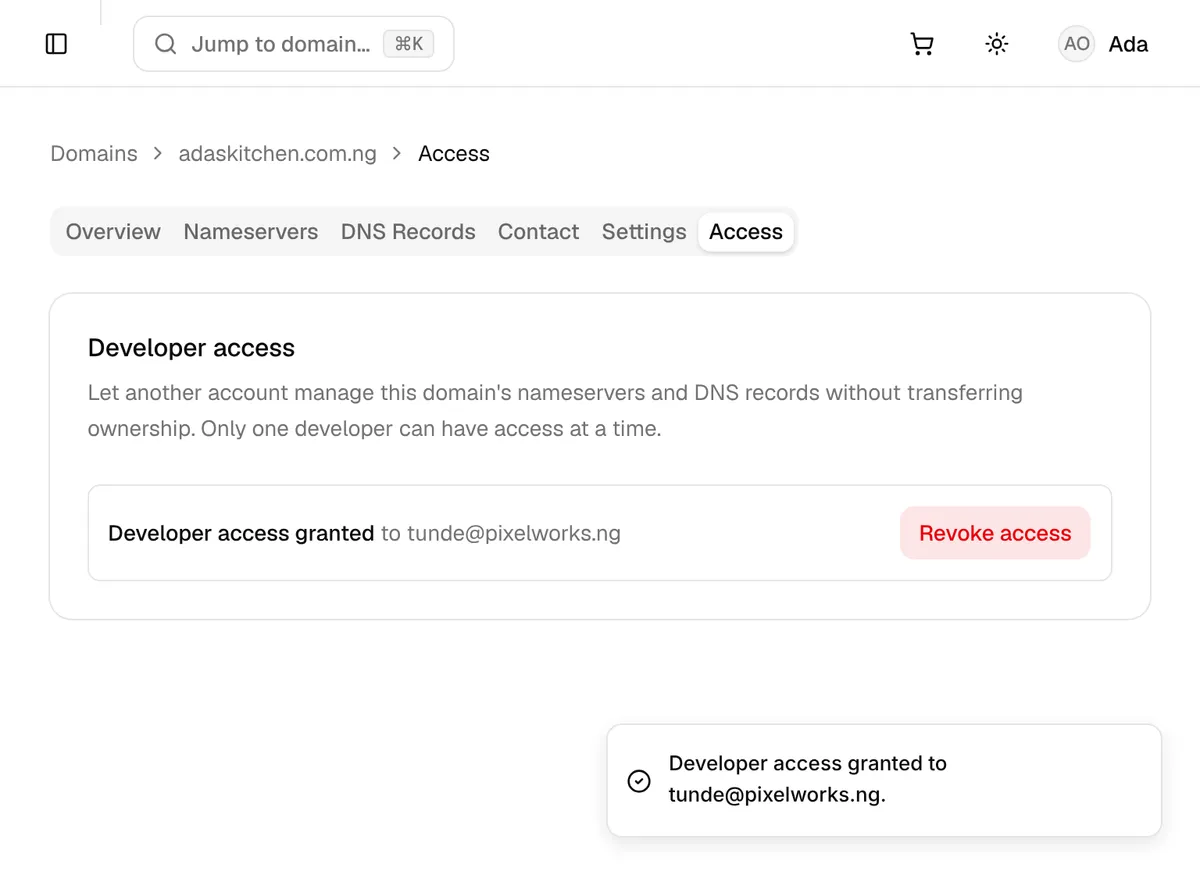
The Access tab now shows who has developer access. Your developer can start working on the domain from their own account right away.
If you see “This domain already has a developer assigned”, someone else still has access. Revoke their access first, then grant it to the new developer.
For developers: manage a shared domain
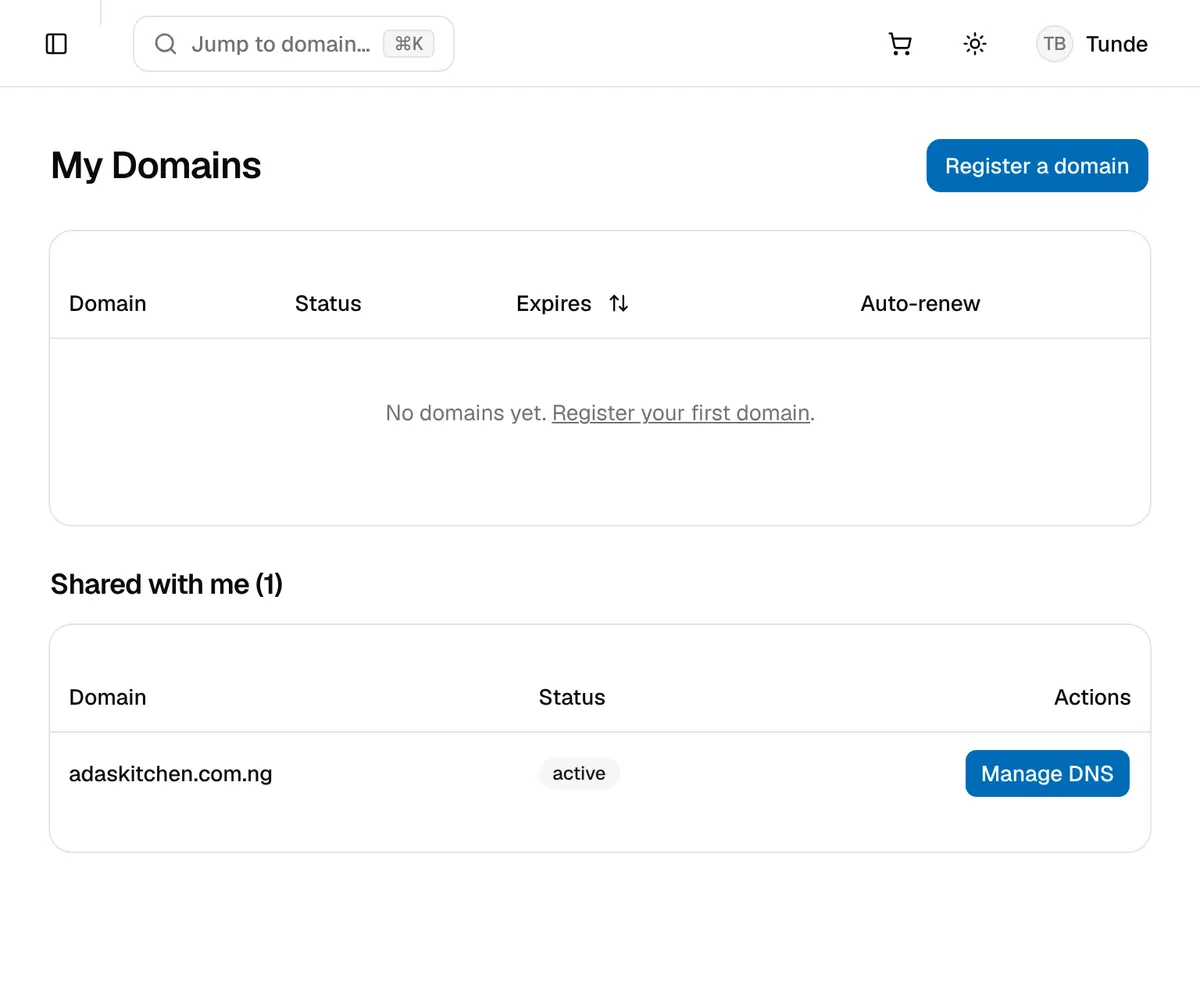
- Sign in to your own NG Domain account and open My Domains.
- Under Shared with me, find the domain and click Manage DNS.
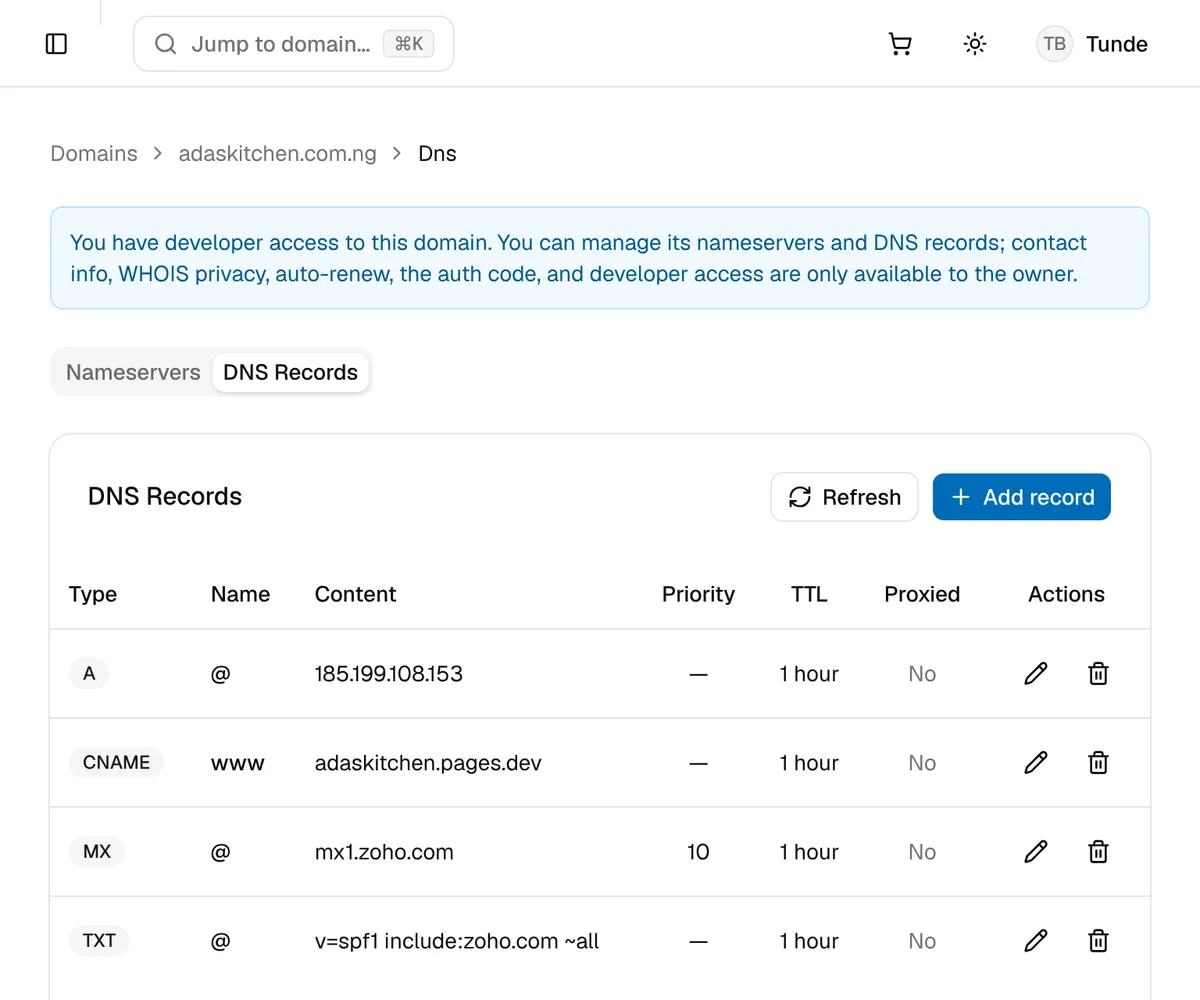
- On the DNS Records tab, add, edit or delete records just as you would for a domain you own. A note at the top of the page reminds you that you have developer access.
- On the Nameservers tab, you can switch the domain to custom nameservers if your hosting provider manages DNS, such as Cloudflare, or switch it back to NG Domain.
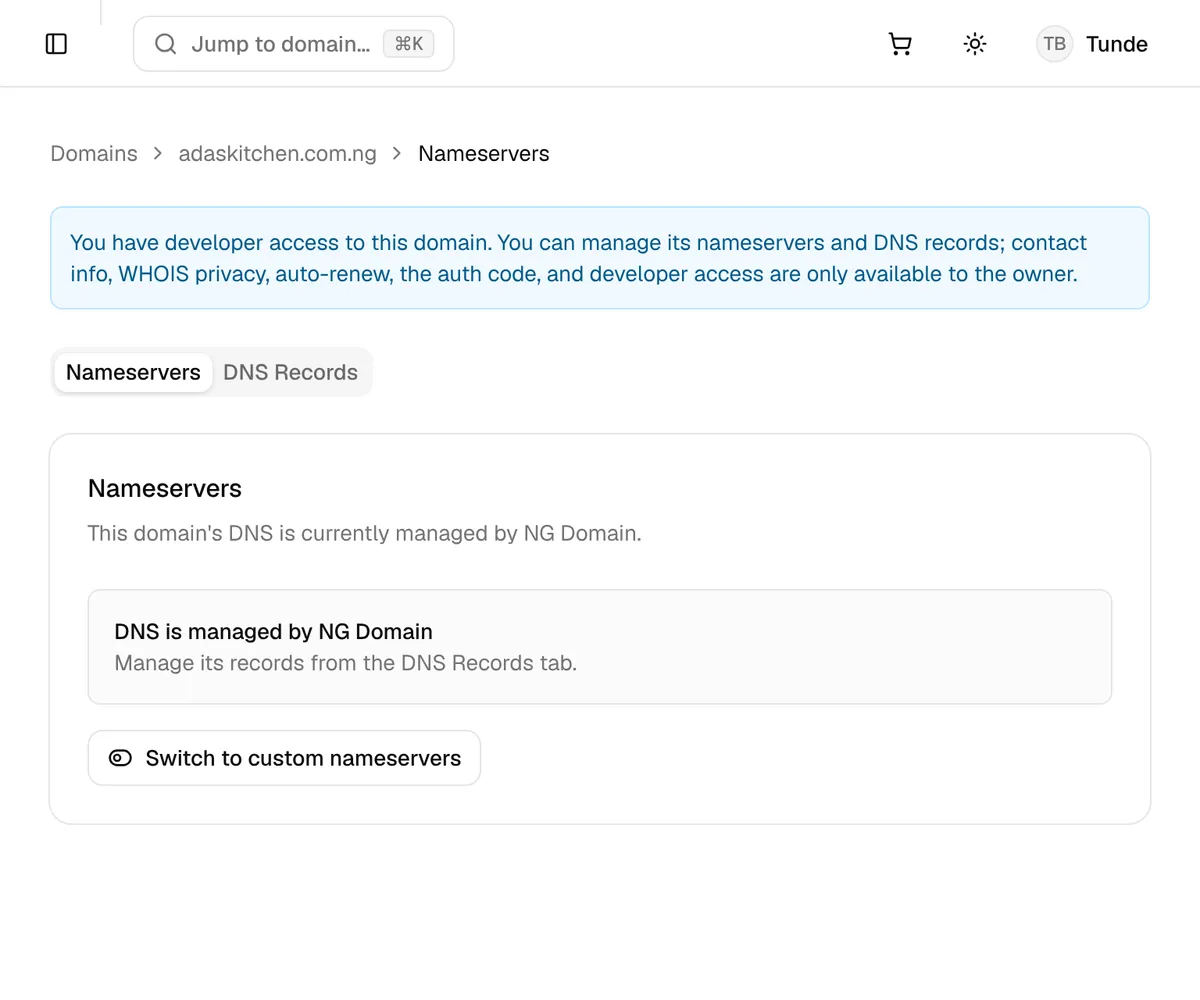
Changing nameservers moves DNS away from NG Domain, so records added on the DNS Records tab stop taking effect. Agree on this with the owner first, and remember changes can take up to 48 hours to spread across the internet.
Changing or removing access
When the project is finished, or you change developers:
- Open the domain’s Access tab.
- Click Revoke access.
Your developer loses access to the domain. Their earlier changes to DNS records and nameservers stay in place, so check those settings or ask your new developer to review them.
To hand the domain to a different developer, revoke the current one first, then grant access to the new email address.
Good habits
- Grant access per domain. If you own several domains, share only the ones your developer is working on.
- Keep the auth code to yourself. Only you can get it, and nobody needs it to build or host a website.
- Keep your account email current. Your login tokens go there, and you are the only one who can change the domain’s owner-only settings.
- Revoke access when the work is done. You can always grant it again later.
If something doesn’t look right, contact our support team and include the domain name.