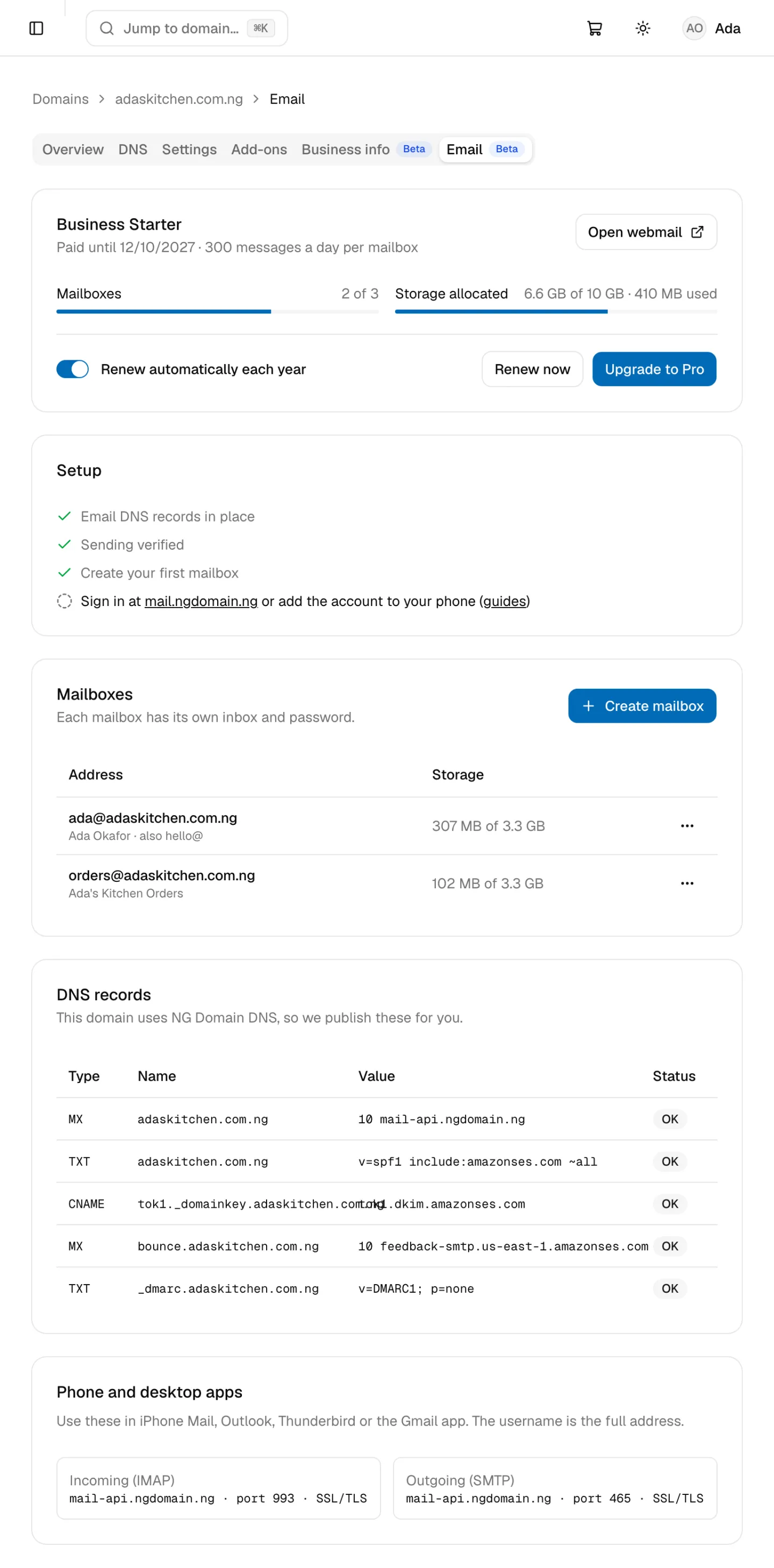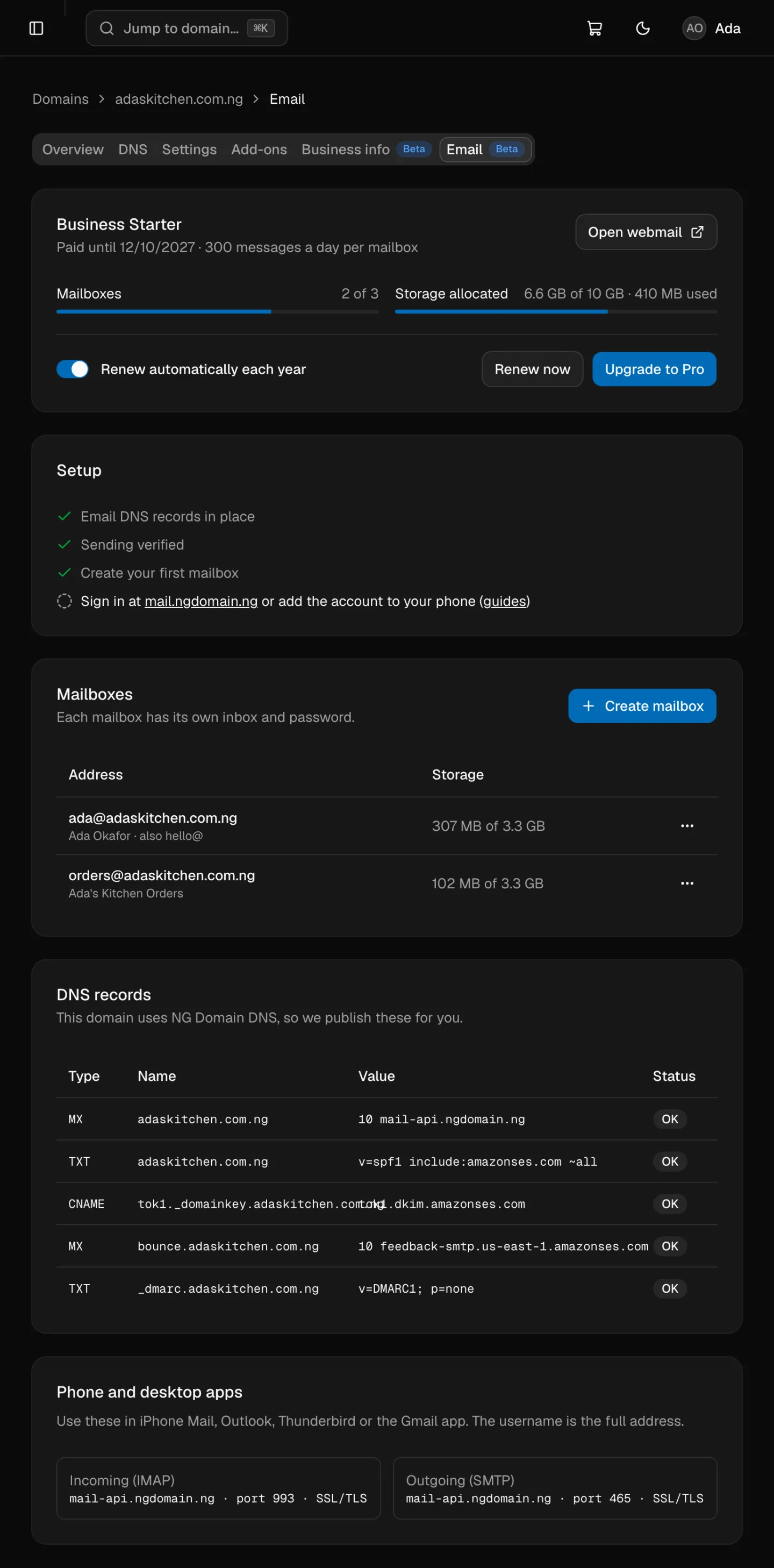
Business email gives you addresses at your own domain, like [email protected], with webmail and phone apps. Here's how to go from nothing to your first sent message.
1. Add business email to your domain
- Need a domain too: on the Business Email page, choose a plan, type the name you want and click Continue to checkout. If it's free, the domain and email go into your cart together. You can also search for a name, add it to your cart, and pick Business Starter or Business Pro under Business email.
- A domain in your NG Domain account: in your dashboard, open the domain, go to the Email tab and choose a plan.
- A domain registered elsewhere: business email is for domains registered with NG Domain, so transfer it to us first.
2. Create your first mailbox
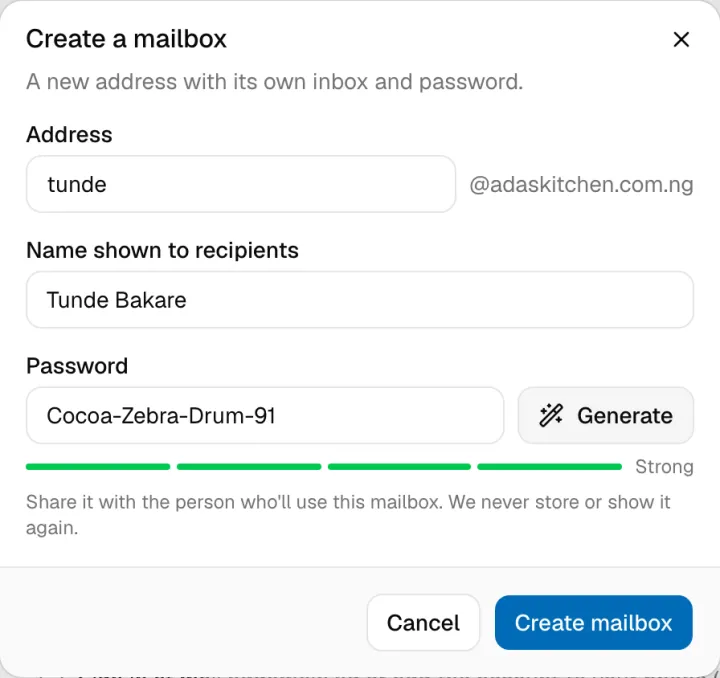
- On the domain's Email tab, click Create mailbox.
- Type the address, such as
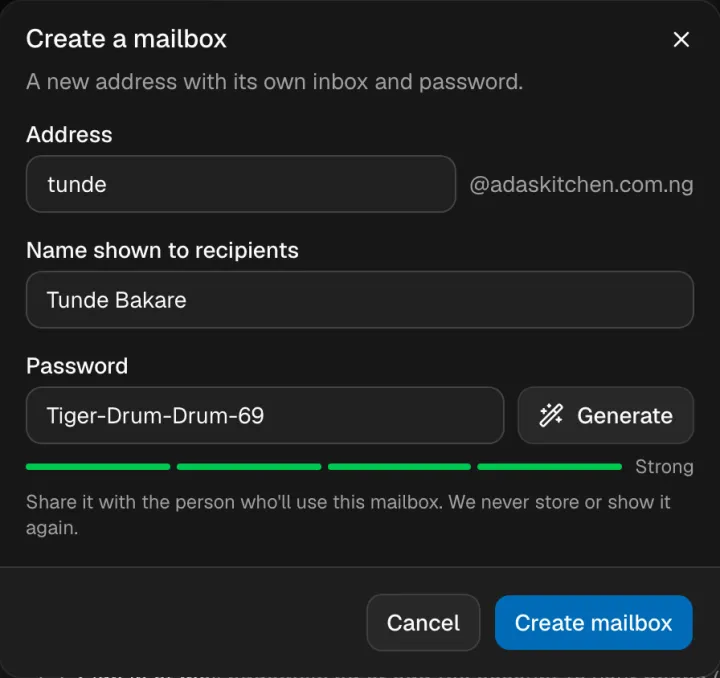
chiamaka, and the name people should see when you write to them. - Click Generate for a strong password, or type your own (at least 10 characters).
- Click Create mailbox, and keep the password somewhere safe. We never show it again.
3. Sign in
Go to https://mail.ngdomain.ng and sign in with the full address and the password. Receiving works within minutes.
4. Wait for sending to verify
The Setup checklist on the Email tab shows when your domain's email records are in place and sending is verified. If your domain uses NG Domain DNS, we publish the records for you and sending usually starts within the hour. If your DNS is elsewhere, see Business Email with Your Own DNS Provider.